| |
|
|
| |
 |
| Video Software |
|
|
|
|
|
|
| |
| Audio Software |
|
|
|
|
|
|
|
|
|
|
|
|
|
|
|
|
| |
| Graphic Software |
|
|
|
|
| |
|
|
|
| |
How to record sound on Windows 7
|
| |
|
Screenshot |
Click the button to Buy Now!
(Only US$ 29.95)
Software Free Download
(3.02 MB) |
|
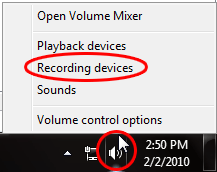
Step 1: Right-click the systray icon 'Speaker' and select 'Recording devices'.
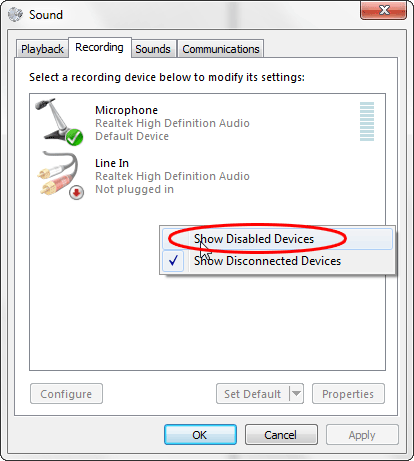
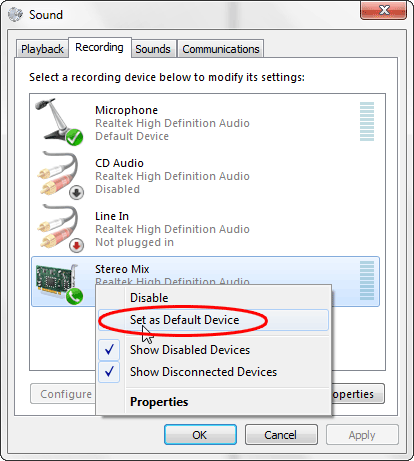
Step 2: On the 'Recording' panel, right-click and select 'Show Disabled Devices'.

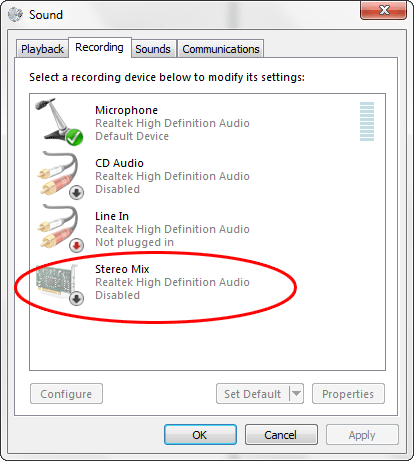
Step 3: Now you will see new devices, the name could be 'Stereo Mix', 'Sound Mix' or 'WAVE Mix', etc. In this example, the device name is 'Stereo Mix'.

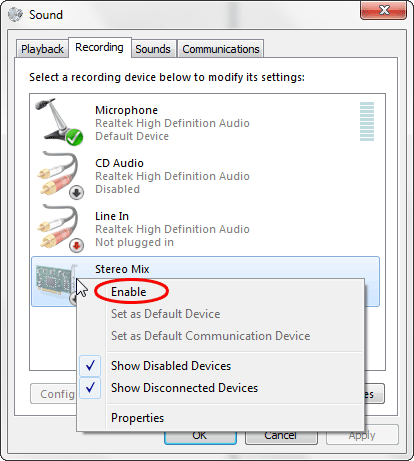
Step 4: Right-click 'Stereo Mix' and select 'Enable'.

Step 5: Right-click 'Stereo Mix' again and select 'Set as Default Device'.

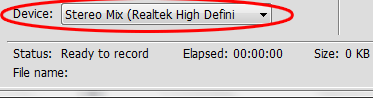
Step 6: Run Hotkey Sound Recorder, set the device to 'Stereo Mix'. Now you may record any sound being played on your computer by Hotkey Sound Recorder!

|
|